What does All Free Video to MP3 Converter do?

All Free Video to MP3 Converter is an amazing assistant to convert
video files of AVI, MPEG, MP4, FLV, SWF, RMVB, WMV, ASF, 3GP, MOV,
etc. into MP3, WAV, WMA, OGG AAC, M4A, FLAC and MP2 files. It also
provides many formats presets to easily control the output quality
and batch conversion to save you a lot of time. With its advanced
built-in audio converting engine, it actually offers the highest
conversion speed without any slight loss of quality.
Here we provide some tutorials for video conversion and you need
only 3 steps to get the converted files. You just need to install
and launch this converter & follow the instructions.
How does it work in detail?
1. add media files to conversion list
By "Add Video..." button, you can activate a browser window to find and input the video/audio files as needed. You can add one or more files in one batch. The detailed information of the added files can be viewed. You can use "Delete" to remove selected file from the list; or use "Clear" to remove all listed files. "Move Up/Down" is used to arrange the sequences & you can also drag the listed files to change the order. There's a "Play" button to play the selected file with the media player in your system.
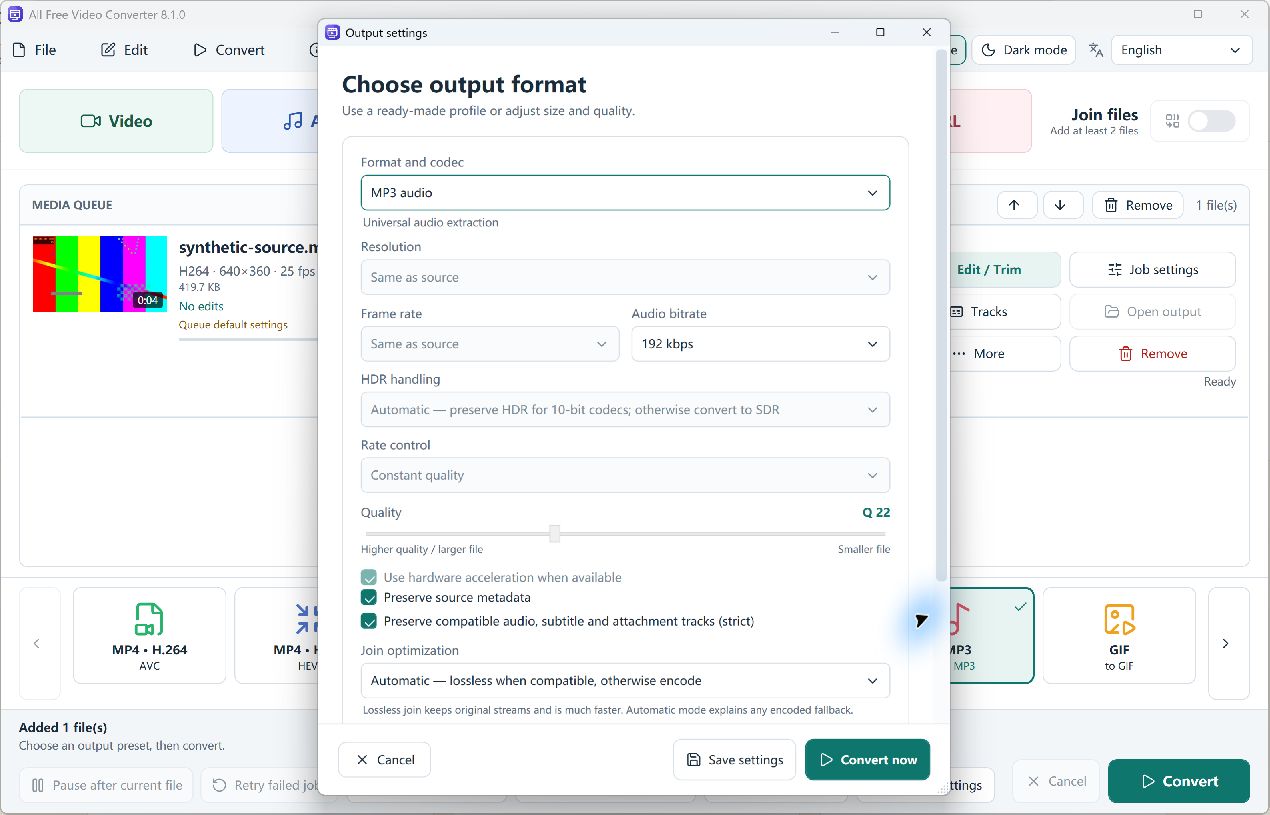
2. output settings and quality adjustment
Select a folder as output directory. We provide many buttons of output audio formats (WAV, MP3, WMA, OGG, AAC, M4A & FLAC) and you just need to choose one in the right tag. Then, if adjustment of the output quality is needed, you should activate the "Presets" list, in which we provide many well-configured quality presets for every format. After you choose a preset, you can click "Back" to go back to add more files or "Convert" to start the conversion.
3. processing
After you hit "Convert" button, the program will immediately
perform the conversion. You can view some progress information as
well as a process bar. During the progress, you may click "Cancel"
to stop the conversion. There are also post process options to play
a sound/shutdown the computer when the conversion is finished.
You can see a brief report after conversion. Don't worry if
you don't remember where you output the file as we provide an "Open
folder" button to directly open the output location. If professional
analysis is needed, you can click "Log" to view the log
information, which can be saved as a .log or .txt file.
That's it. No cost, no registration, no malware & no complicated operation.