How to batch convert videos
Convert several local recordings in one queue with All Free Video Converter. Choose the queue default settings and keep Join files off for separate outputs. Check the setting shown on each queued item before starting.

Prepare and convert a batch of local videos
Allow enough free disk space for all the outputs. Keep the source files while you check the batch.
Add the files to one queue
Open All Free Video Converter and add the videos you want to process. Check the number of queued items and the source names. Start with a small batch while you confirm the settings.
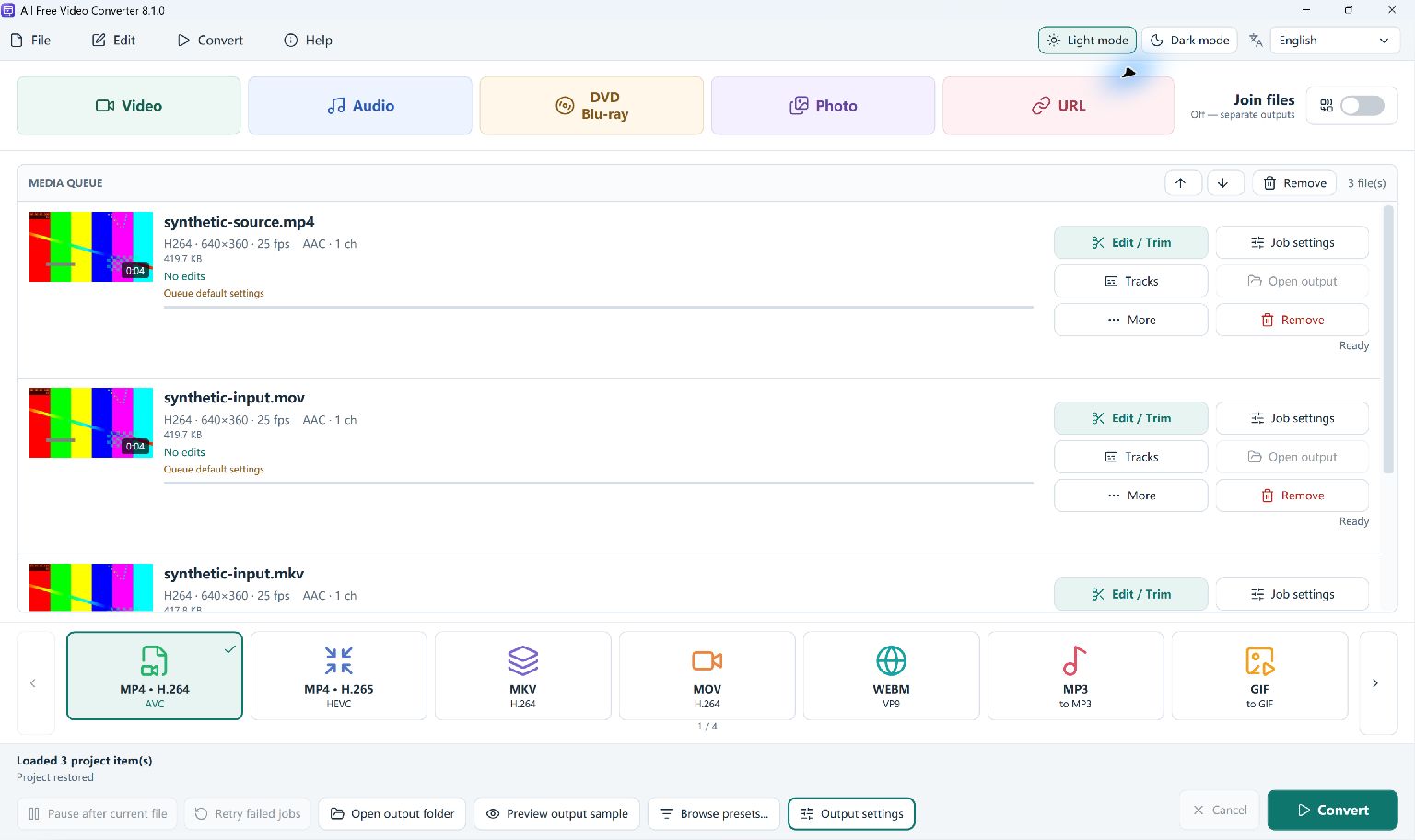
Choose the queue default settings
Choose your output format and review the setting on each queued row. Items marked Queue default settings use the shared queue options. For separate MP4 files, select MP4 with H.264 video and AAC audio and keep Join files off.
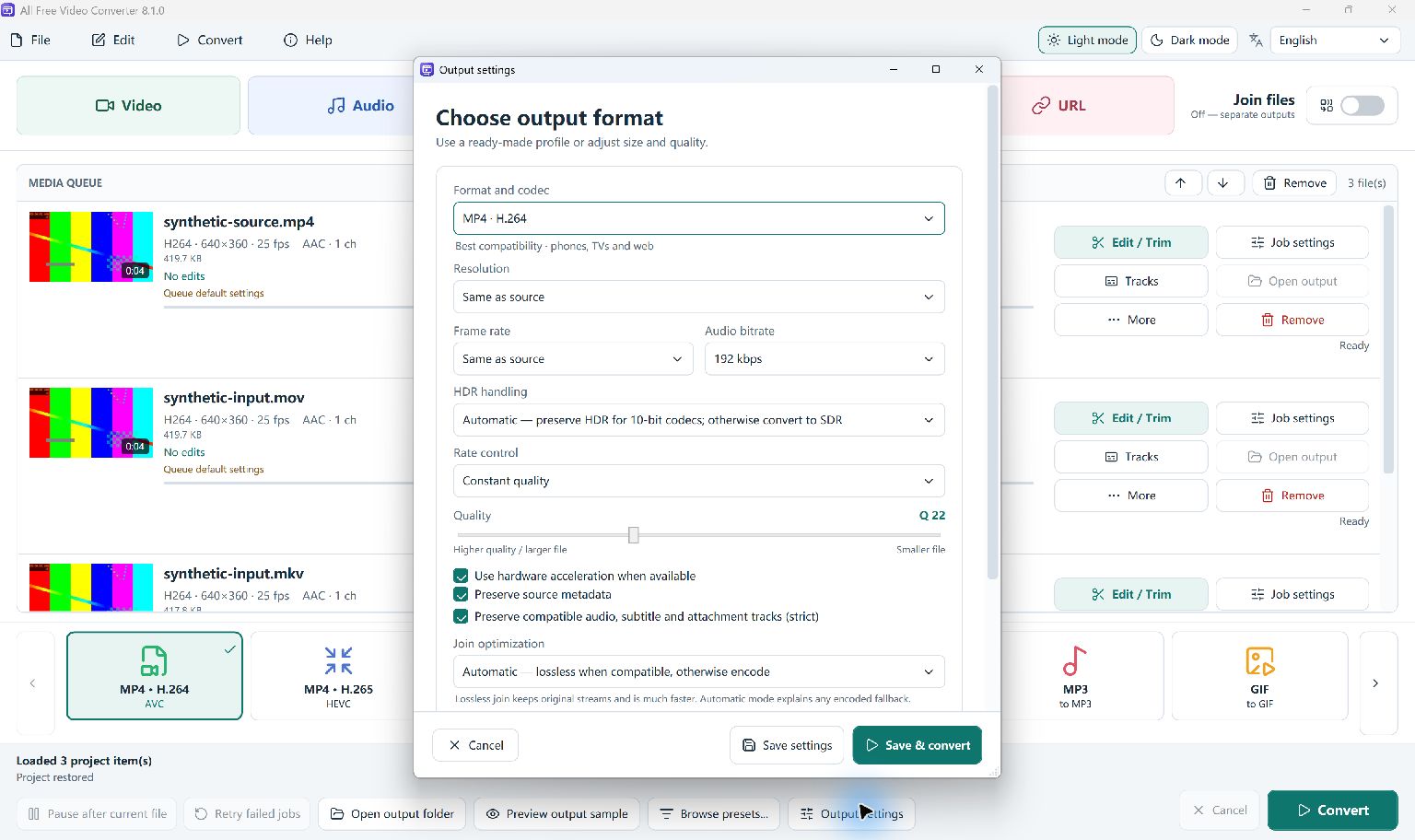
Set the folder, convert and check
In Output settings, scroll down to Save to. Use Browse... to choose a folder, then click Save settings. Return to the main window and click Convert. Review each job after it finishes and open each output. A failed input can appear alongside successful jobs.
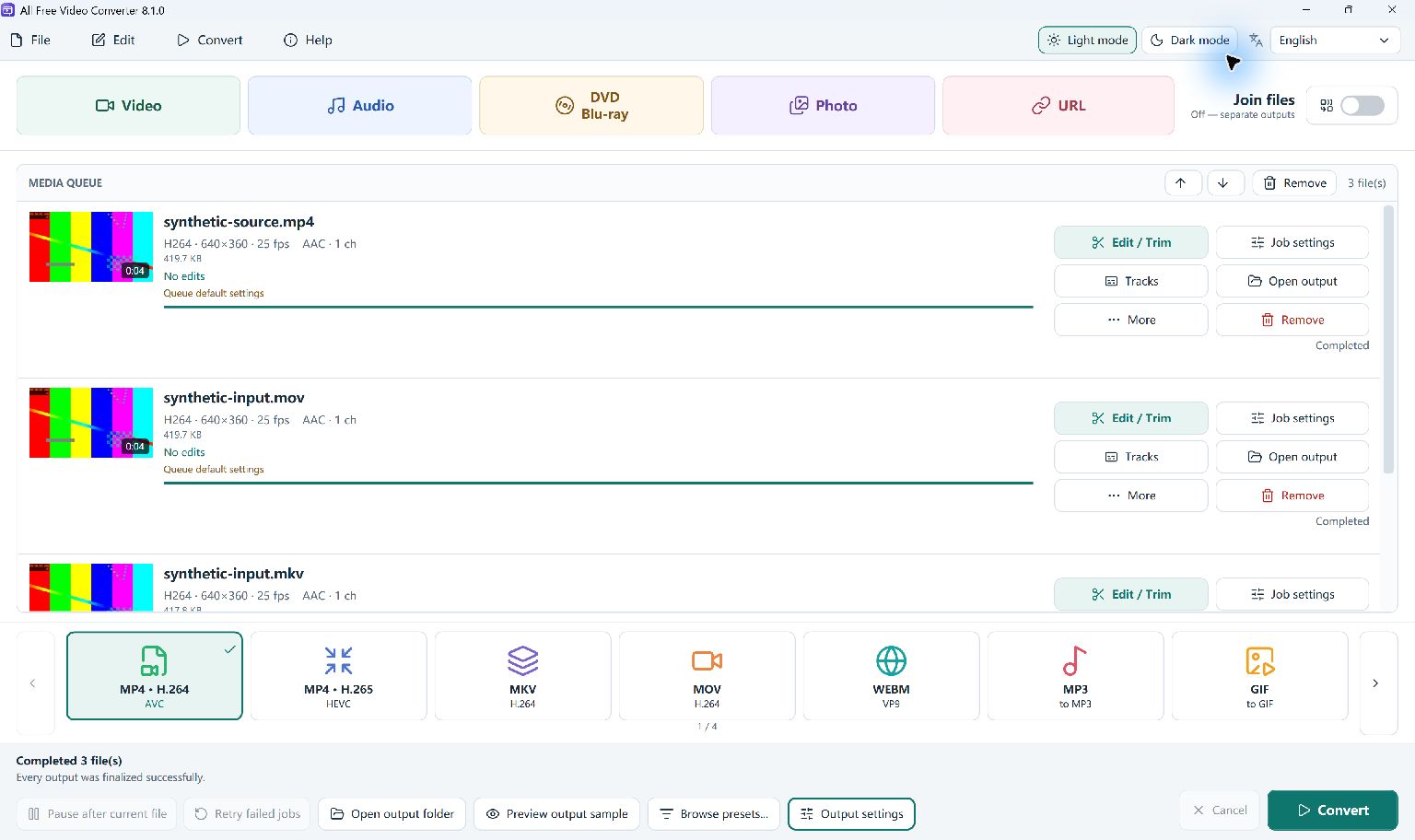
Example: three files converted as one batch
On 14 October 2026, we queued three self-made clips in version 8.1.0: one MP4, one MOV and one MKV. Each source used H.264 video and AAC audio and was about four seconds long. All three rows used Queue default settings. We selected MP4 with H.264/AAC, kept the source dimensions and frame rate, and left Join files off.
The program reported Completed for all three files and created three separate MP4 outputs, each with H.264/AAC at 640 × 360 and 25 fps. The complete outputs passed decoding checks. The MOV and MKV inputs shared a base filename; in this batch the second output received a (1) suffix to keep it separate.
This test covers shared queue defaults and separate outputs for these source codecs. Review a sample and its output settings before applying them to a larger collection.
A short batch conversion checklist
Source list
Confirm that the queue contains the intended files. Remove unrelated clips before starting a long batch.
Queue settings
Items marked Queue default settings use the shared output options. Review the label on each item. Use MP4 when you need video, or MP3 when you only need sound.
Output names
Check the output names and folder before the batch. If your inputs share a base filename, keep their results distinguishable and check for conflicts.
Free disk space
Keep enough room for every output as well as the originals. Output size varies with duration and the selected settings.
Finished jobs
Check the completion state of each queued source. Open the outputs to verify the expected picture or sound and duration.
Failed jobs
If an item fails, test that source separately. Check that it plays, that the input is complete, and that the output folder is available.
Batch conversion creates separate files
A batch is a list of conversion jobs. Use it when you need an MP4 or MP3 for each source recording. It does not make one continuous video from the queue. If you want a single combined video, use a joining workflow instead.
Re-encoding also does not guarantee a smaller output or identical visual quality. Choose settings for the intended result and check a sample before committing to a large collection.
Download All Free Video Converter
Prepare a queue of local videos and check each converted result.
Frequently asked questions
Does batch conversion join all my videos into one file?
No. A batch contains separate conversion jobs. Each source creates its own output. Use a joining workflow if you need one continuous recording.
Should I check the settings of every queued file?
Yes. Items marked Queue default settings use the shared queue options. Review the setting shown on each item, and keep Join files off when you need separate outputs.
What should I do if one file fails in a batch?
Check that source separately: confirm that the file is complete and plays correctly, then review its output settings and folder. Check the results of the other queued jobs as well.
Will a batch conversion always make the files smaller?
No. Output size depends on duration, resolution, codec and the selected encoding settings. Check a sample result before converting a large collection.