How to Convert MP4 to MP3
Turn a local MP4 recording into an audio-only MP3 with All Free Video Converter. This guide covers the file you already have on your PC. It also applies to other video inputs the program can read.

Extract audio from MP4 in three steps
You need a local video with an audio track and enough free space for the output.
Add the source recording
Install and open All Free Video Converter on Windows 10/11. Add an MP4 from your PC. Play the source to confirm that it contains the sound you want to keep.
Select MP3 and review audio settings
Choose MP3 on the main window. Open its output settings and choose the audio bitrate: 128, 160, 192, 256 or 320 kbps. The default is 192 kbps. Increasing bitrate cannot repair a noisy or low-quality recording. Video resolution, frame rate and video quality controls are not used for MP3 audio.

Convert, then check the new audio file
In the Output settings window, scroll down to Save to. Click Browse... and choose the output folder in the Windows folder dialog. Click Save settings, return to the main window and click Convert. Play the completed MP3 to check its sound and duration. Keep the MP4 as your original video.
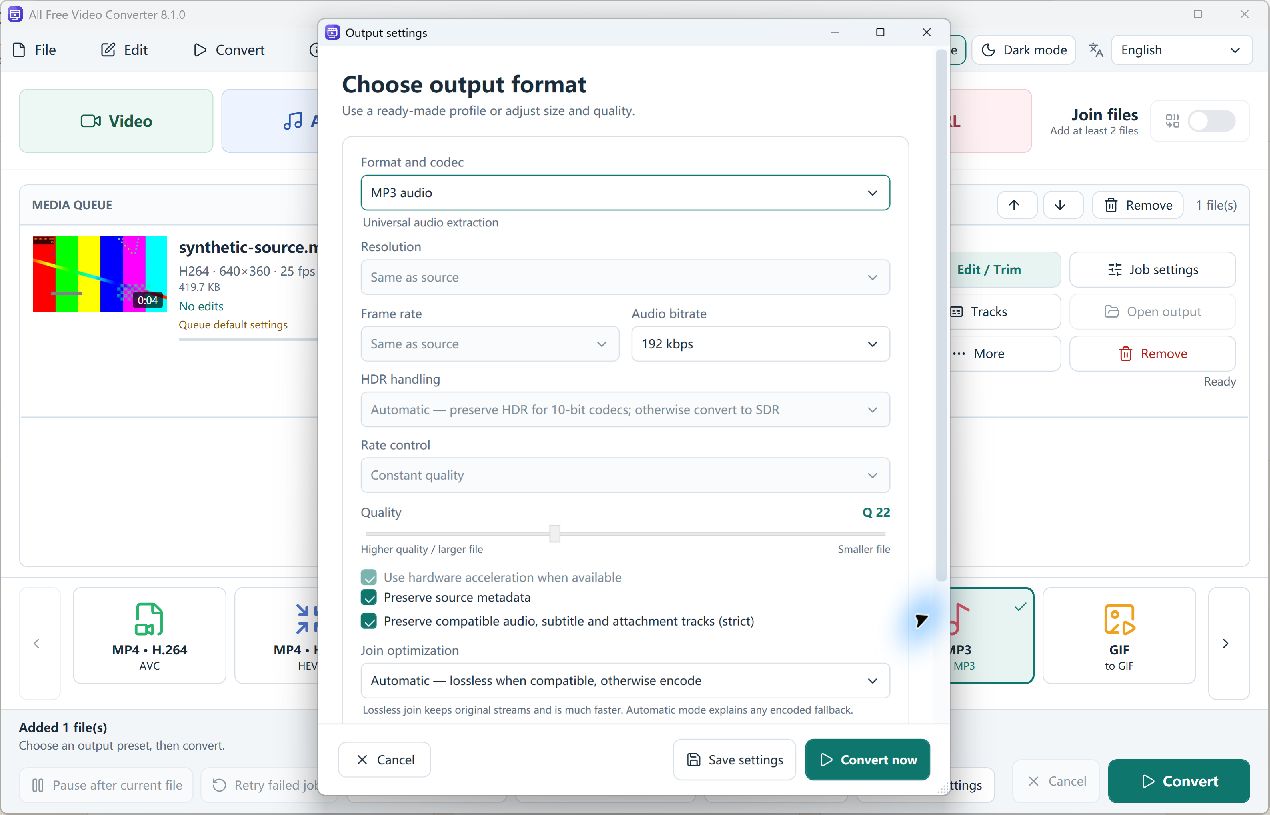
Example: a local MP4 converted to MP3
On 14 October 2026, we converted a self-made four-second MP4 clip with H.264 video and AAC audio using version 8.1.0. The result was an audio-only MP3 at 192 kbps and 44.1 kHz, with a duration of about 4.02 seconds. The complete output was checked for decoding errors.
This example checks a short local file. A particular recording still depends on the codecs and condition of its source audio.
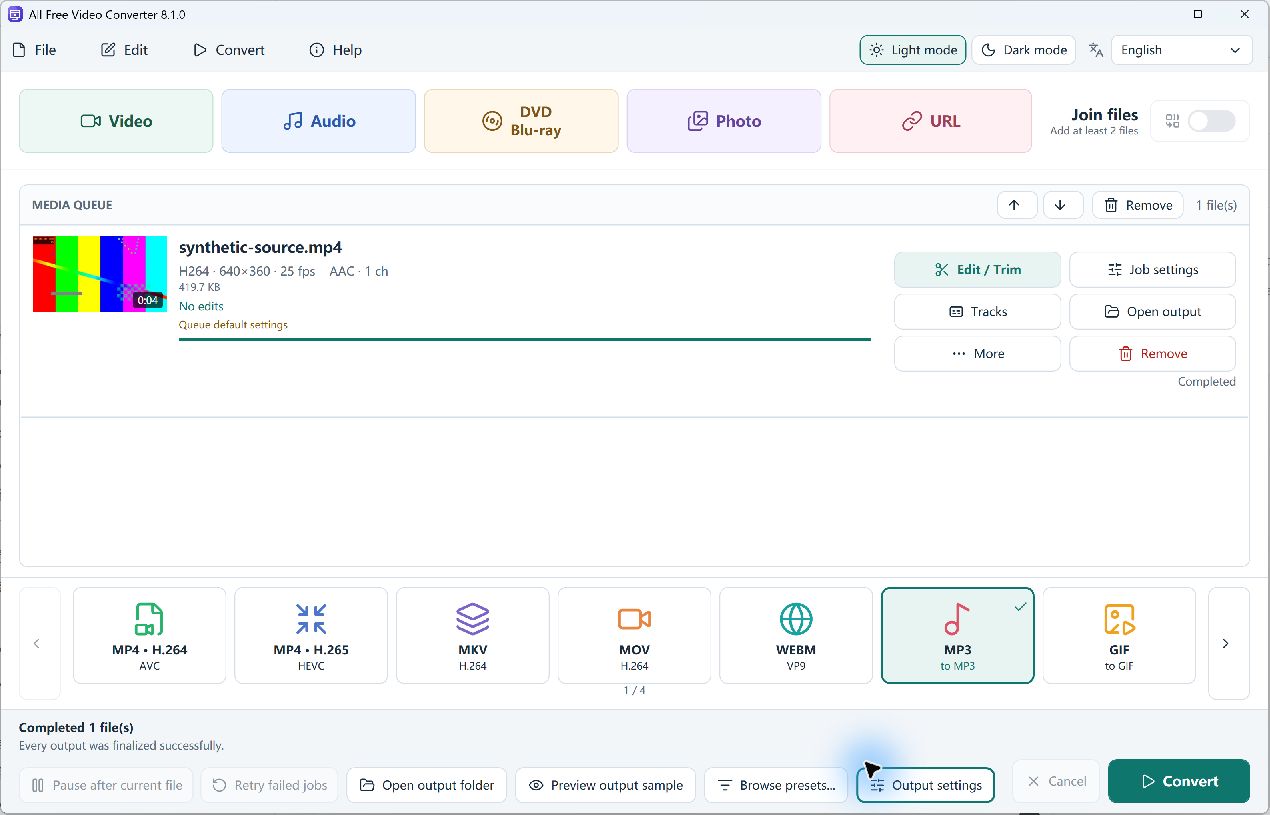
What to check before converting
Source sound
A video can contain a picture without an audio track. Listen to the original before treating a silent output as a conversion fault.
Audio bitrate
Start with the default 192 kbps, or choose another available audio bitrate for your listening needs. Re-encoding is not a way to recover detail lost in the original sound.
Output files
Use a folder you can find again. For several inputs, keep Join files off for separate outputs, follow the batch guide and check every queued item.
If the MP3 is silent or will not play
- Check the original video in a player. Confirm that it has an audible audio track.
- Confirm that MP3, rather than a video format, is selected for the job.
- Check the completed job and open the new output file, rather than the original or an unfinished file.
- Try another player. If only one source fails, test a second local MP4 with sound to isolate a damaged or unsupported input.
- Keep the source while you investigate. Repeatedly converting the same MP3 will not restore quality.
Download All Free Video Converter
Extract local MP4 audio as an MP3 listening copy.
Frequently asked questions
Can I convert MP4 to MP3 with this download?
This page downloads All Free Video Converter. Add a local MP4 that has an audio track, select MP3 and convert it to an audio-only file.
Will the MP3 include the video picture?
No. MP3 stores audio. Keep the original MP4 if you also need the video picture.
Does a higher MP3 bitrate improve the original audio?
A higher bitrate can reduce the loss from a new MP3 encode, but it cannot restore detail that is already missing from the source recording.
Why is my MP3 silent after conversion?
Play the source first to check that it has audible audio. Then check the selected output format and the new MP3 in another player. An MP4 with no audio track cannot produce the original sound.