Free YouTube to AVI MPEG Converter
Save a YouTube video as AVI or MPEG for a compatible player or video workflow. Download All Free YouTube Downloader for Windows 10/11 (64-bit), add a readable video link, and select the output format you need.
This is Windows PC software. Open this page on your computer to download and install it.
- Cost
- Free to download and use
- Runs on
- Windows 10/11 (64-bit)
- Setup file
- 77.8 MB
- Version
- 8.1.0
How to convert a YouTube video to AVI or MPEG in 3 steps
Choose the source, check the output settings, and test the result.
Already have the video on your PC? Use All Free Video Converter, add the file with Video, then select AVI or MPEG. The steps below use a readable YouTube link you are allowed to save; they do not require you to upload a local file.
Add your YouTube link
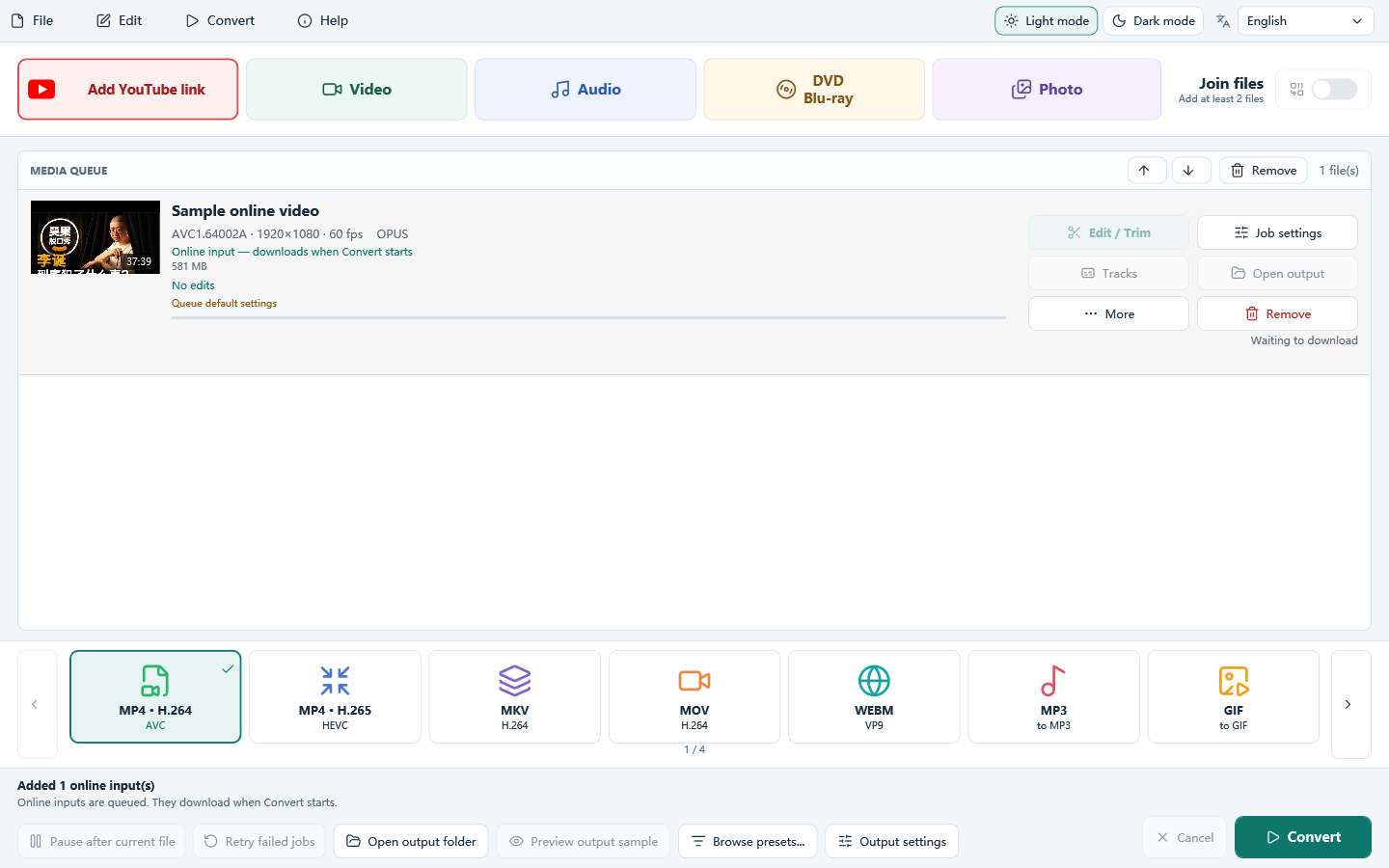
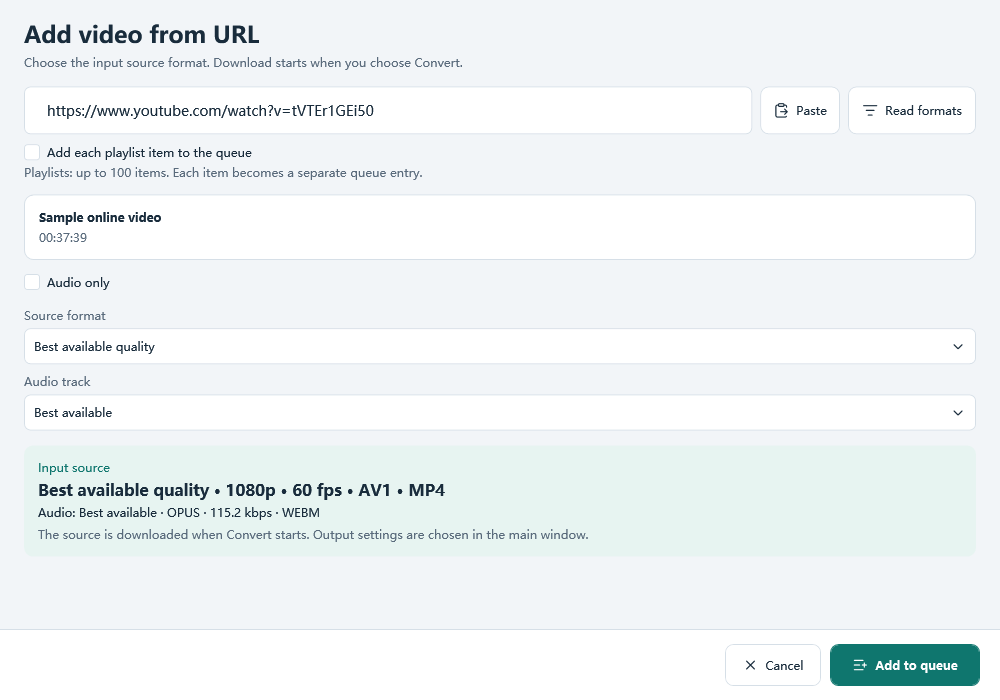
In All Free YouTube Downloader, click Add YouTube link. Paste a readable video link you are allowed to save, then click Read formats.
Choose a readable video source
Keep Best available quality or choose another listed video source, then add it to the queue. The sources depend on the video and what the program can read. Do not choose audio only when you need a video file.
Choose AVI or MPEG and click Convert
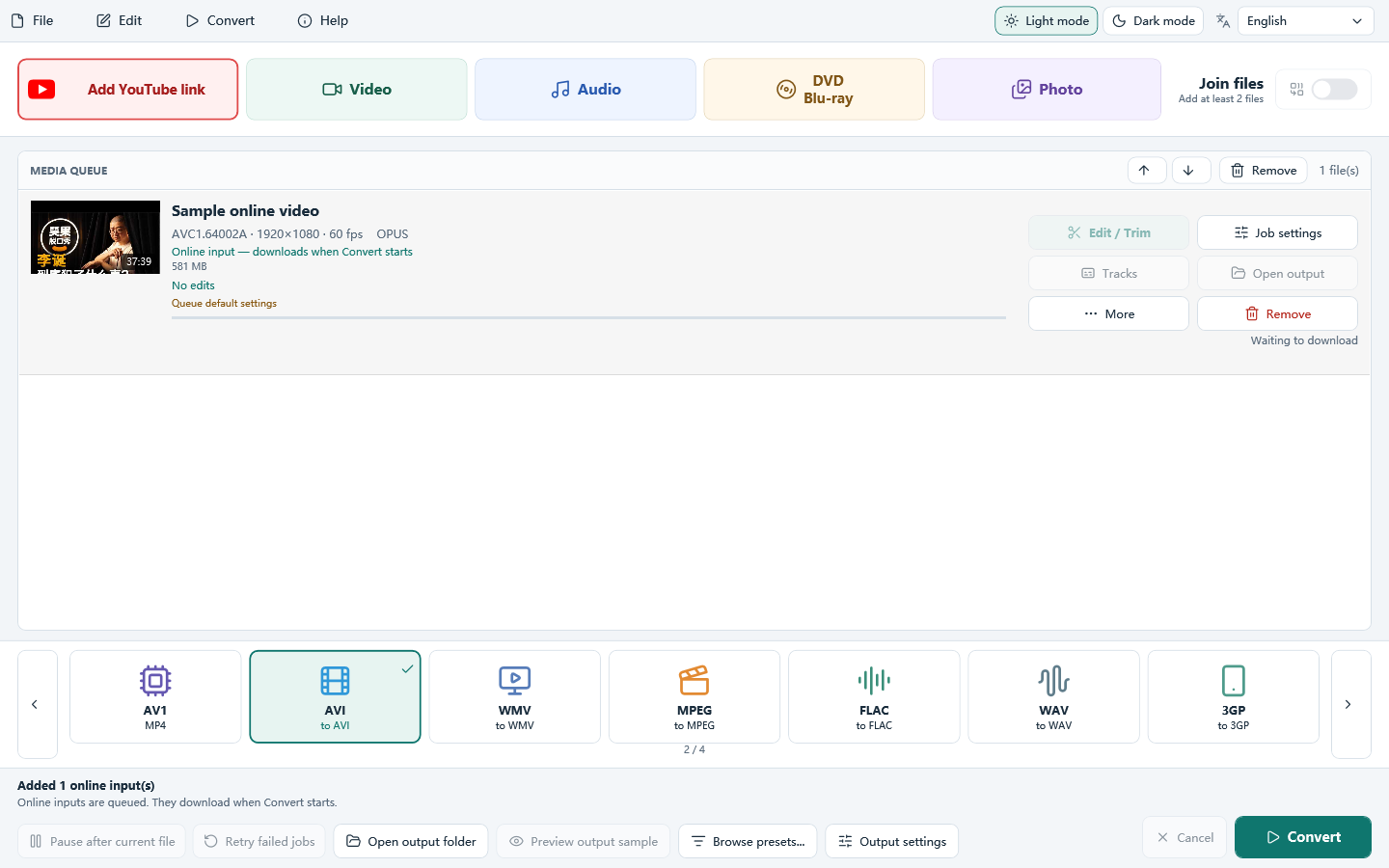
Select AVI or MPEG on the main window and check the output settings and folder. Click Convert to download the selected source and create the AVI or MPEG output. Source selection and output format are separate choices.
What you can do with Free YouTube to AVI MPEG Converter
YouTube to AVI or MPEG
Add YouTube link reads the source. AVI and MPEG are chosen on the main window.
Batch queue
Add many files, set options per file and convert the queue in order.
Quality and size
Use constant quality, an average bitrate or a target file size.
Trim local videos
For an existing video on your PC, keep the part you need and crop, rotate or flip it before converting.
GPU when available
NVIDIA, Intel and AMD encoders are used when your PC has that encoder.
No added watermark
The program does not stamp its own watermark onto the output.
Should you choose AVI or MPEG?
AVI for a player that asks for AVI
This program writes AVI with MPEG-4 video and MP3 audio. Check that the receiving player supports those codecs: AVI is a container, so support for another AVI file does not guarantee support for this one.
MPEG for an MPEG-2 workflow
Choose MPEG when the receiving application or device asks for an MPEG-2 program stream. This output uses MPEG-2 video and MP2 audio. Select MPEG on the main window; changing an AVI filename to .mpeg does not convert its contents.
Balance quality and size
Begin with the source resolution and frame rate. Use average bitrate or target file size if the receiving system has a size limit. Raising resolution or bitrate cannot recover detail absent from the source.
Before you convert the whole video
- Read formats finds nothing? Check that the link opens in your browser. Private, removed, restricted or unsupported links may not be readable. Try another video you are allowed to save; output settings cannot fix a source-reading error.
- Only audio is saved? Choose a listed video source rather than an audio-only source, then select the video output format on the main window.
- Conversion fails? Read the job’s error, check free disk space and the output folder, and try a short video first. Test an existing local file separately to distinguish a source download problem from a conversion problem.
Related guides
Download All Free YouTube Downloader
Save YouTube videos as AVI or MPEG.
Frequently asked questions
Is Free YouTube to AVI MPEG Converter free?
Yes. Download All Free YouTube Downloader free of charge. Free YouTube to AVI MPEG Converter describes this conversion task within that program.
Does it run on Windows 11 and Windows 10?
Yes. It is a 64-bit desktop program for Windows 11 and Windows 10. It does not run on Mac, Android or iPhone.
Do I have to upload my files?
No. Local conversion runs on your PC. For a YouTube link, the program needs an internet connection and must be able to read and download the source.
Is there an online converter on this page?
No. This page downloads Windows desktop software. Use a Windows 10/11 (64-bit) computer to install and run it.
What is the difference between the AVI and MPEG outputs?
The AVI output uses MPEG-4 video and MP3 audio. MPEG writes an MPEG-2 program stream with MPEG-2 video and MP2 audio. Choose the combination required by your receiving player or application, then test a short clip.
Does Read formats choose AVI or MPEG?
No. Read formats chooses the video source to download. Select AVI or MPEG separately on the main window before clicking Convert.
Will renaming .avi to .mpeg work?
No. Renaming changes the filename but not the video inside. Choose MPEG in the program and convert the video to create an MPEG output.
What if the YouTube link cannot be read?
Check that the video opens in your browser and that you are allowed to save it. Private, removed, restricted or unsupported links may not work. Try another readable video; changing the output format will not fix a source-reading error.
Is it legal to download YouTube videos?
Download only videos you own or have permission to save, and follow YouTube’s Terms of Service. The program does not bypass DRM or other access controls. A public link works only when the download module can read it.
Tutorials
Download only videos you own or have permission to save, and follow YouTube’s Terms of Service. The program does not bypass DRM or other access controls. A public link works only when the download module can read it.