How to Convert YouTube to WMV
Save a readable YouTube video as WMV for a compatible Windows player or application. Use All Free YouTube Downloader on Windows 10/11 (64-bit), choose a video source, and select WMV output.
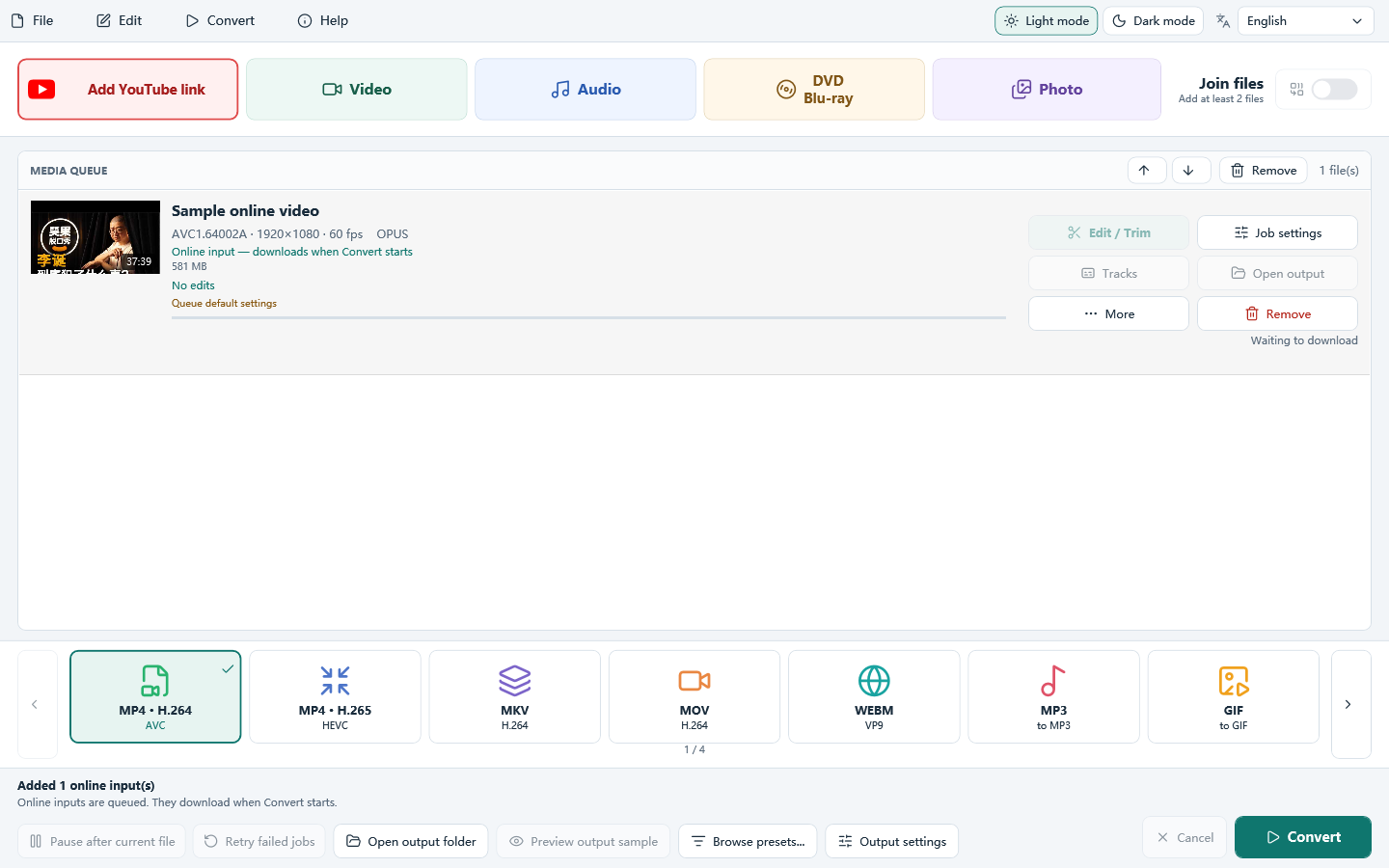
Do it in 3 steps
The screenshots are from the current program.
Install and add a YouTube link
Install All Free YouTube Downloader on Windows 10/11 (64-bit). Open it, click Add YouTube link, and paste a video link you are allowed to save.
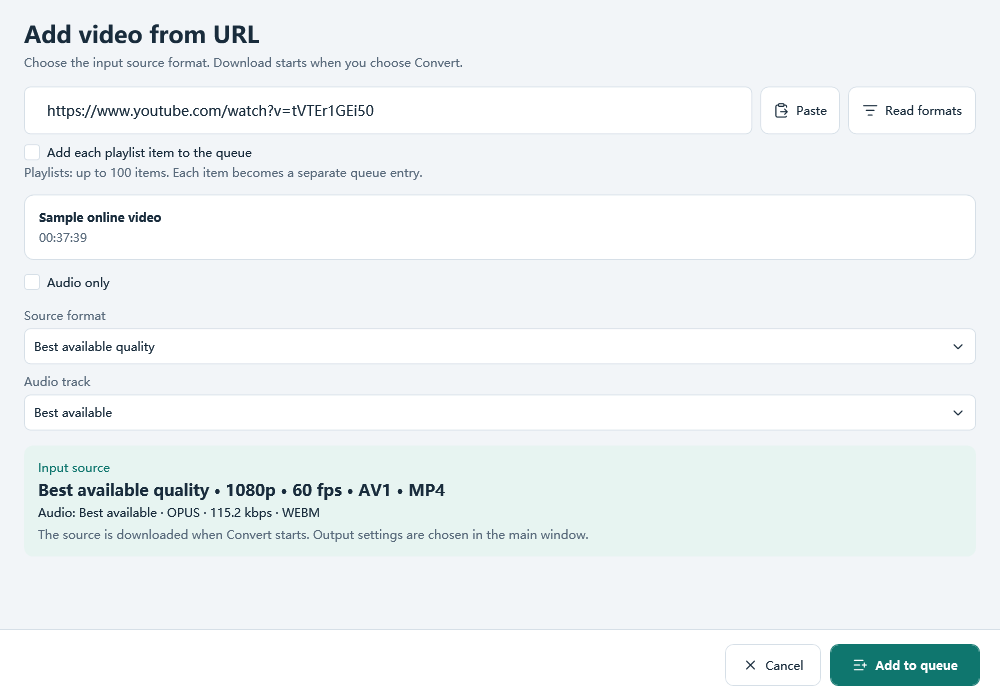
Choose a readable video source
Keep Best available quality or choose another listed video source, then add it to the queue. The sources depend on the video and what the program can read. Do not choose audio only when you need a video file.
Choose WMV and click Convert
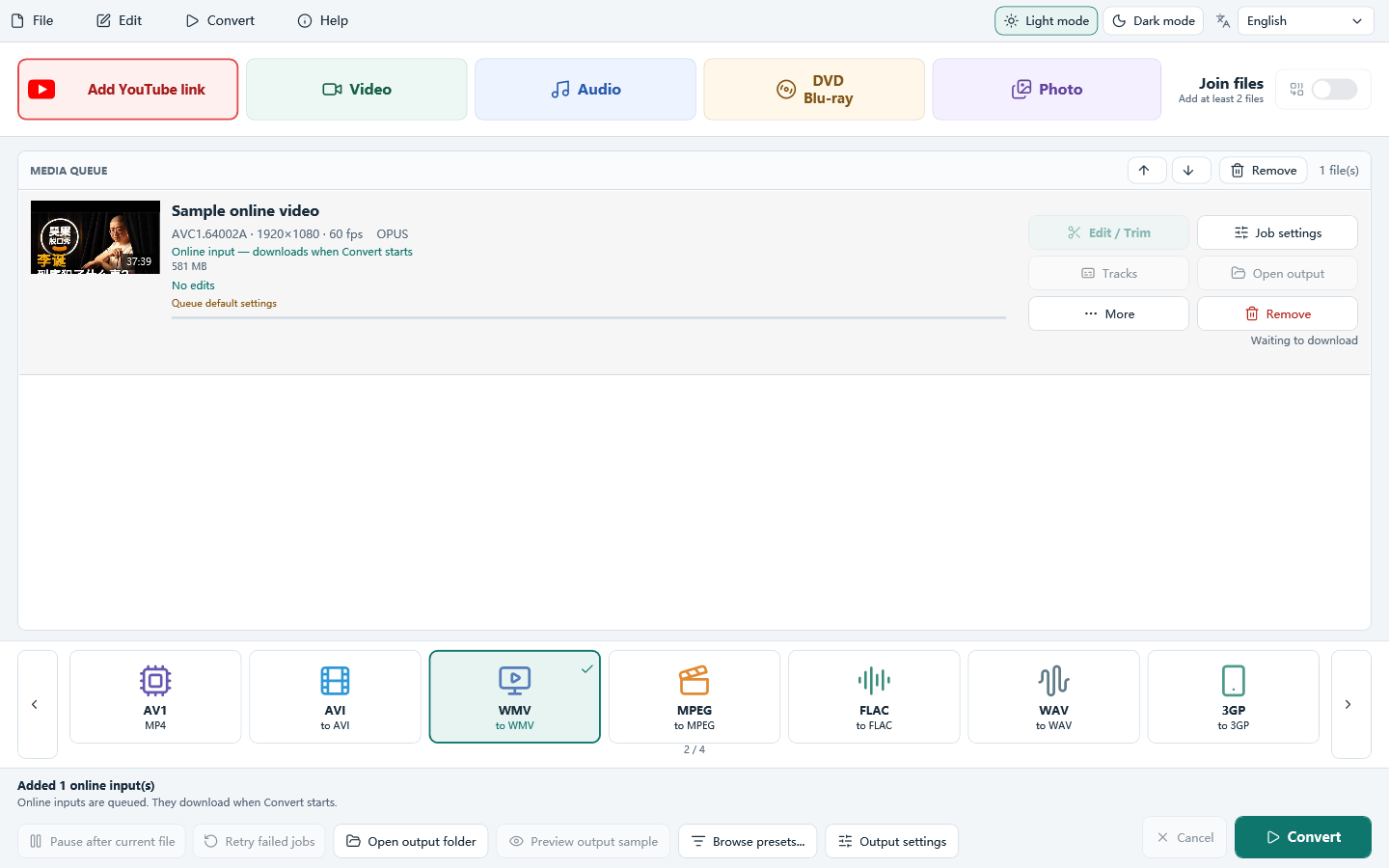
Select WMV on the main window and check the output settings and folder. Click Convert to download the selected source and create the WMV output. Source selection and output format are separate choices.
Download only videos you own or have permission to save, and follow YouTube’s Terms of Service. The program does not bypass DRM or other access controls. A public link works only when the download module can read it.
Make a WMV file that fits your Windows workflow
Check the required WMV version
This program’s WMV output uses WMV2 video and Windows Media Audio. Use it when your player or application accepts that combination. Test one clip before relying on it for a presentation or a batch.
Match the source picture
Start with the source resolution and frame rate. Enlarging a small source does not add detail. Keep its aspect ratio so the picture fits without stretching.
Choose a manageable file size
Use an average bitrate or target file size when the file must fit a storage or sharing limit. Lowering bitrate reduces size at the cost of detail, especially in fast motion.
Before you convert the whole video
- Read formats finds nothing? Check that the link opens in your browser. Private, removed, restricted or unsupported links may not be readable. Try another video you are allowed to save; output settings cannot fix a source-reading error.
- The WMV does not play? Check whether your player supports WMV2 video and Windows Media Audio. Try a short sample in the receiving application and check its format requirements.
- Conversion fails? Read the job’s error, check free disk space and the output folder, and try a short video first. Test an existing local file separately to distinguish a source download problem from a conversion problem.
Related guides
Download All Free YouTube Downloader
How to Convert YouTube to WMV