Windows guide
Choose H.264 or H.265 MP4 for a USB Player
Make a short compatibility test for the TV or projector that will use the USB drive before converting a full batch.
Download All Free Video ConverterWindows 10/11 (64-bit) · 2.07 MiB online installer. Internet required to download program components.
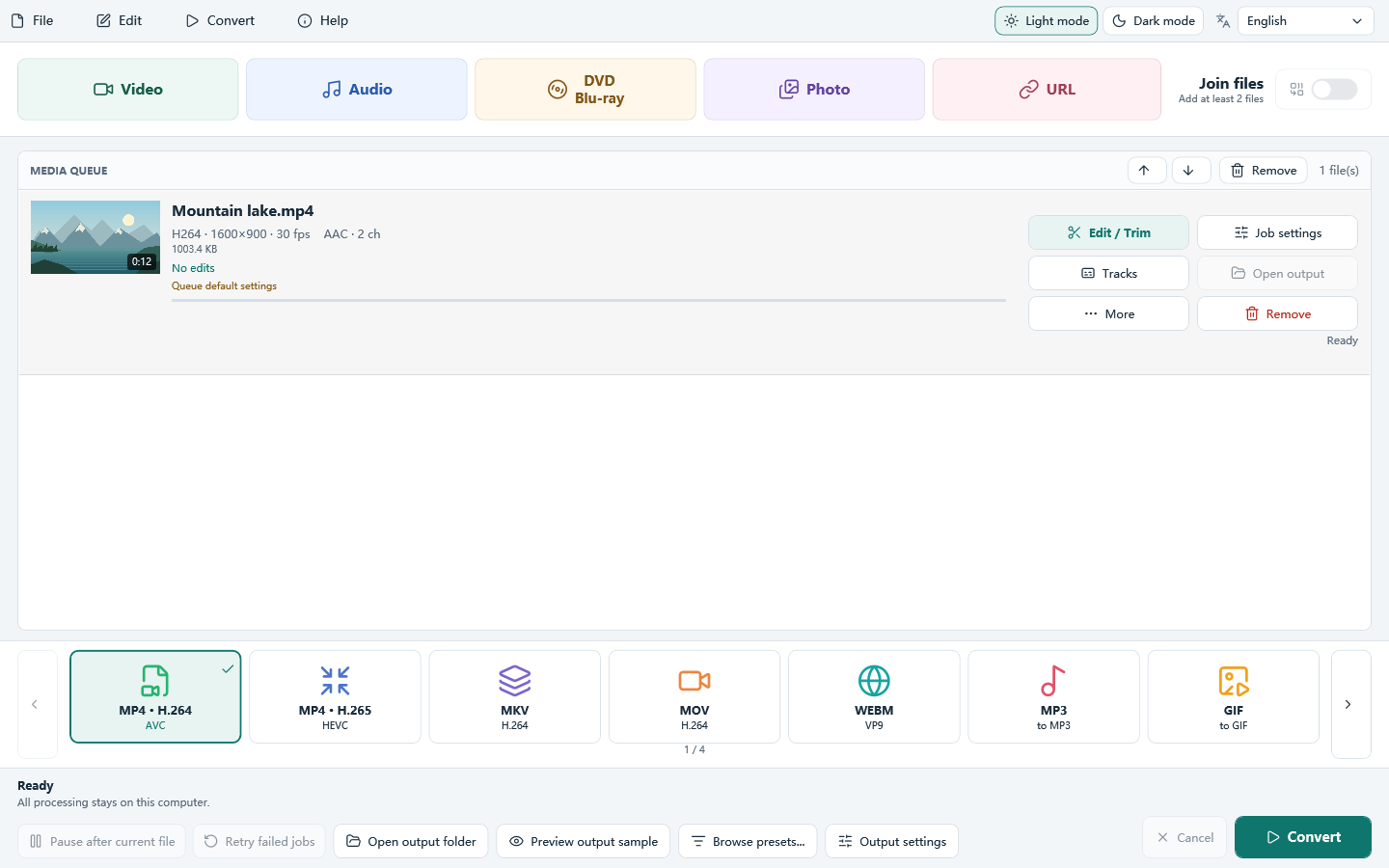
Check what the player already accepts
Find the USB playback section of the device manual. Write down the allowed video and audio codecs, dimensions and frame rate. If you have a working MP4 on that drive, use it as a control. MP4 describes the container; H.264 and H.265 are separate video codecs.
Encode one short, recognizable clip
Select Video and add a short local clip with motion and sound. Choose MP4 · H.264 for the first test if the player lists AVC. In Output settings, match its supported size and frame rate. If the manual explicitly lists HEVC, you can make a second copy with MP4 · H.265 using the same source.
Play the finished file from the same USB drive
If neither copy shows up, put the known-good file in the same folder and check the drive and file list. If only H.264 plays, use that format for the batch. If video plays without sound, check the player’s audio codec restrictions before changing the picture settings.