How to use Free DVD to MP4 Converter
Choose a starting point for converting your unencrypted VIDEO_TS folder on Windows 10/11 (64-bit). This guide index links to the complete, tested workflow and the fix for each common symptom.
Pick the guide you need
First conversion
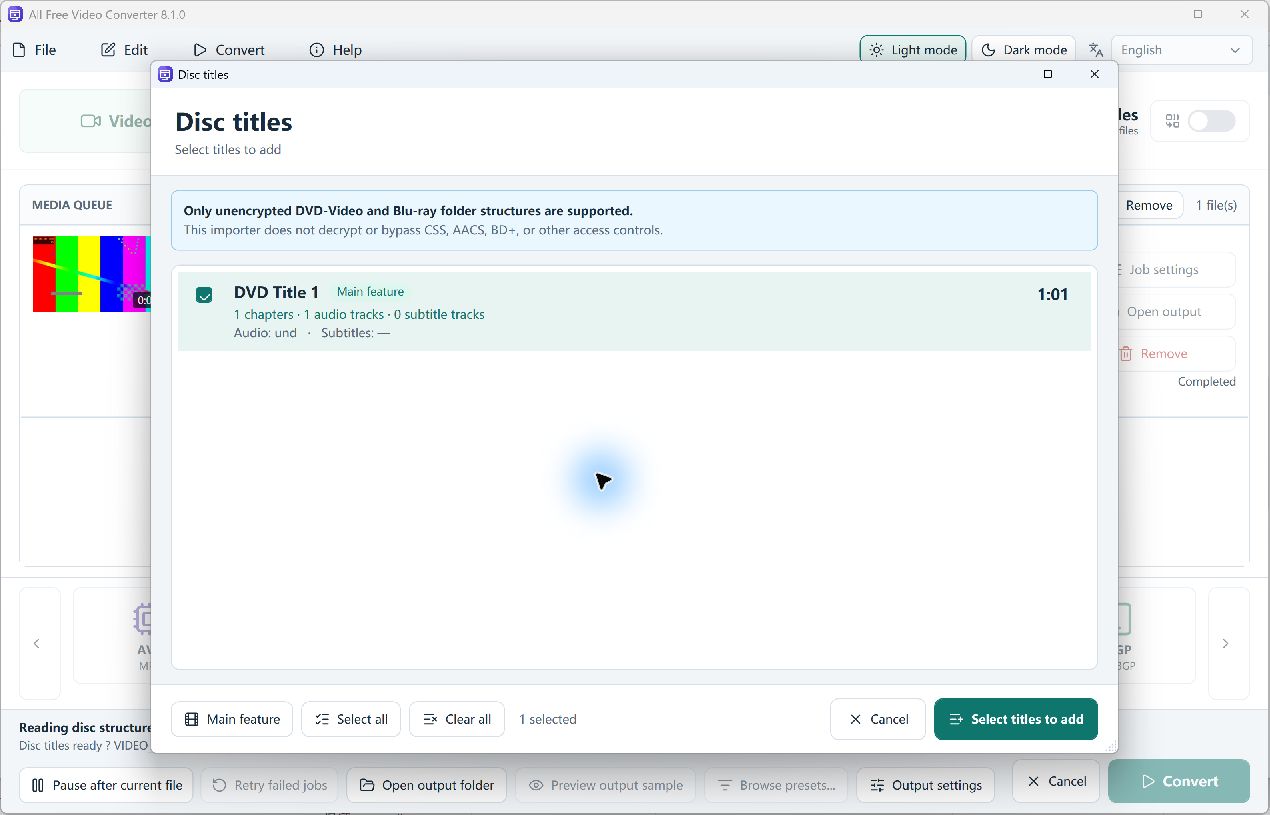
Have a complete, unencrypted VIDEO_TS folder? Follow folder import, title selection, MP4 · H.264 settings, tracks and completed-file checks.
Choose output settings
Check source resolution and frame rate, H.264/AAC support on your target player, and the quality/size tradeoff before a longer conversion.
Check what was tested
Read the 61-second self-authored DVD folder result, the accepted title details and the separate 4-second title-filtering example.
Before you start
- Use a Windows 10/11 (64-bit) PC and install All Free Video Converter.
- Keep the source folder’s IFO and VOB files together; use only your own or authorized unencrypted material.
- Choose a writable output folder with free space.
- Keep the source until picture, audio and duration have been checked in the finished MP4.
Find the fix for your symptom
- The VIDEO_TS folder will not open — check the complete source and access.
- No playable logical titles remain — read the filtering message and short-title example.
- The wrong title or duration is selected — compare titles before processing the rest.
- Audio, language or subtitles need checking — inspect Tracks and test the finished file.
- The MP4 will not play on the target device — check completion, format and player support.
- The file is large or the picture looks soft — compare source and output settings.
- Conversion stops or output cannot be written — use the exact error to guide the retry.
The program does not remove copy protection. The documented test used a folder on disk with one audio track and no subtitles; it did not test a physical DVD, multiple audio tracks or subtitle output.
DVD to MP4 product page and download · Convert an original video file instead
Download All Free Video Converter
How to use Free DVD to MP4 Converter