How to use Free 3GP Video Converter
Convert MP4, AVI and other local videos to 3GP for a compatible phone or player. Download All Free Video Converter for Windows 10/11 (64-bit), choose 3GP, and convert your files on your PC without uploading them.

Do it in 3 steps
The screenshots are from the current program.
Install and add your AVI file
Install All Free Video Converter on Windows 10/11 (64-bit), then add your AVI file. You can add several files or drag them onto the window.
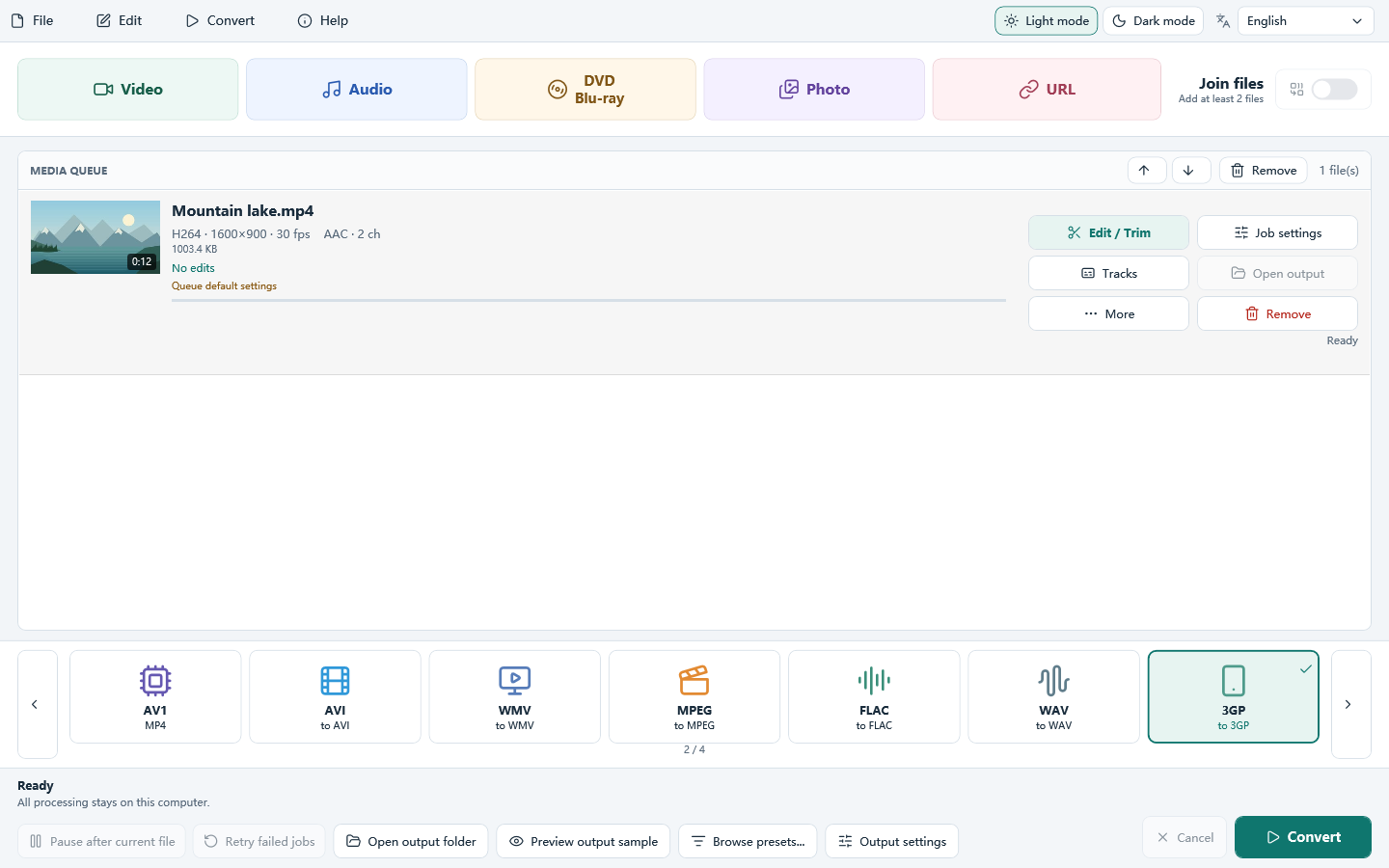
Choose 3GP for a compatible device
Select 3GP on the main window. This output uses H.264 video and AAC audio. Check that your phone or player supports those codecs and your chosen picture size.
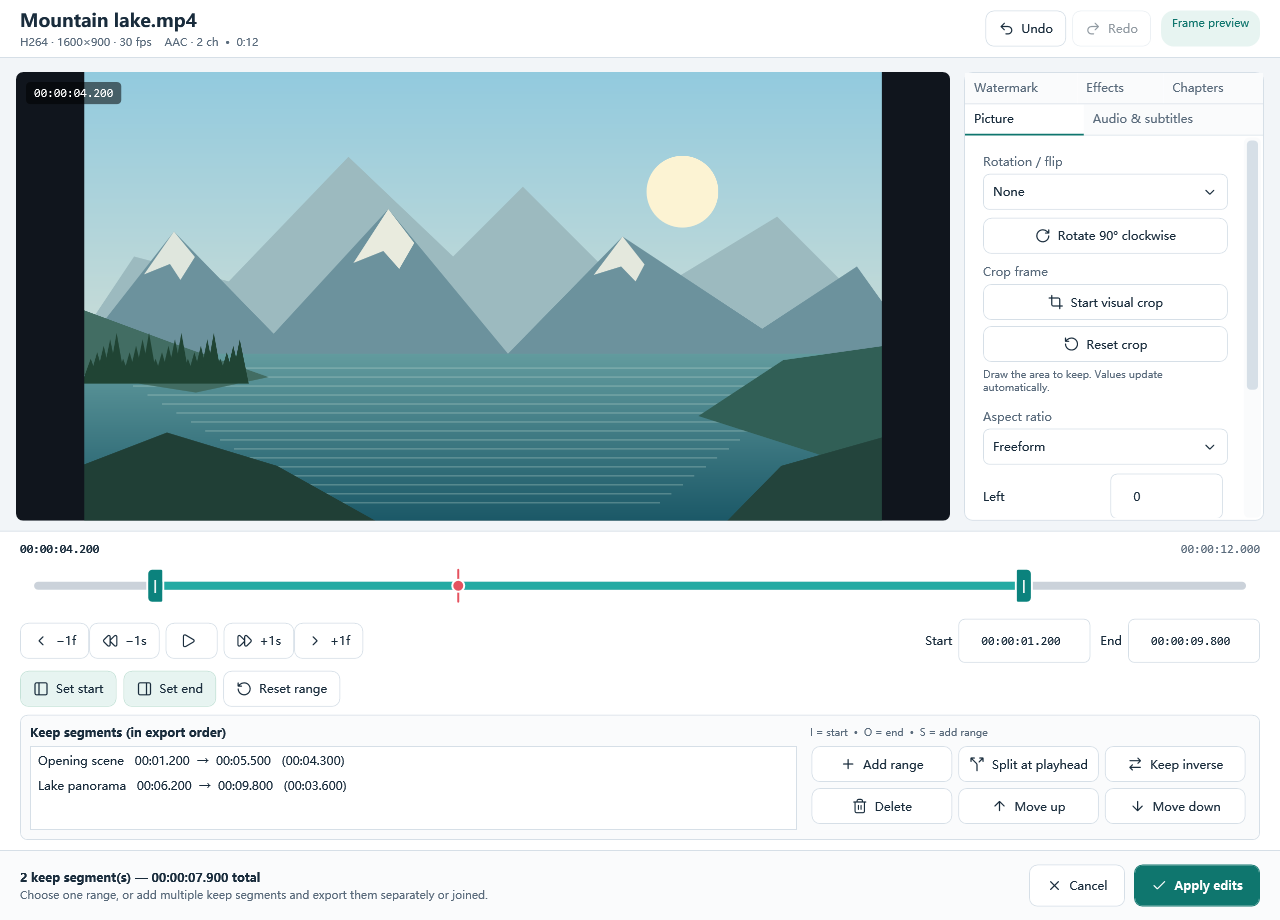
Check size and convert
Choose quality, average bitrate or target size, then check the output folder and click Convert. Test a short clip on your device before applying the settings to a full batch.
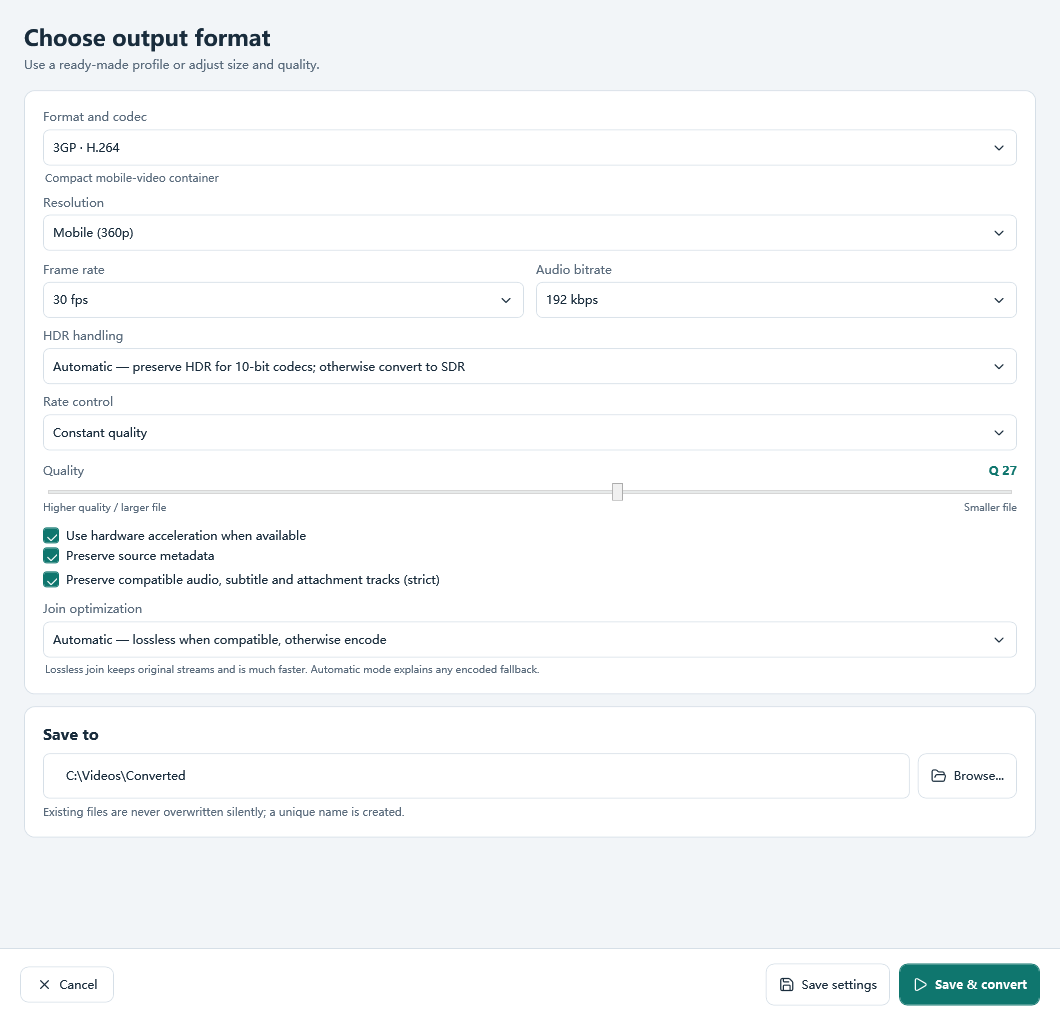
Choose 3GP settings for your phone or player
Choose settings for your device
A .3gp extension alone does not guarantee playback. Check the device’s supported video codec, audio codec, resolution and frame rate. This program’s 3GP output uses H.264 video and AAC audio; some older phones require different codecs.
Control the file size
Use a target file size when storage or sharing limits matter, or an average bitrate when you need a predictable data rate. A lower bitrate saves space but can soften details. Keep a short test clip before converting a long video.
Keep the right resolution
Match the output resolution to the screen and player that will use the file. Increasing it beyond the source does not restore detail. A smaller picture can help reduce file size, but must still meet your device’s requirements.
Before you convert the whole video
- The phone will not play the result? Check its codec requirements as well as the .3gp extension. Test the result on that device before transferring a full batch.
- The result is too large? Use a lower average bitrate or a smaller target size. Shortening the clip also reduces the amount of video to store.
- The picture looks stretched? Keep the source aspect ratio, or crop deliberately. Changing width and height independently can distort faces and objects.
Related guides
Download All Free Video Converter
How to use Free 3GP Video Converter