Windows guide
DVD to MP4: Fix the Wrong Audio Language
Choose the intended soundtrack on the queued DVD title and verify spoken audio in the completed MP4.
Download All Free Video ConverterWindows 10/11 (64-bit) · 2.07 MiB online installer. Internet required to download program components.
Check which soundtrack the source uses
Play a scene with dialogue from your unencrypted DVD folder. Note the intended language and whether you hear commentary. A commentary track can be in the same language as the main dialogue. Make a note of the track order if your source player shows it.
Choose the track on the queued title
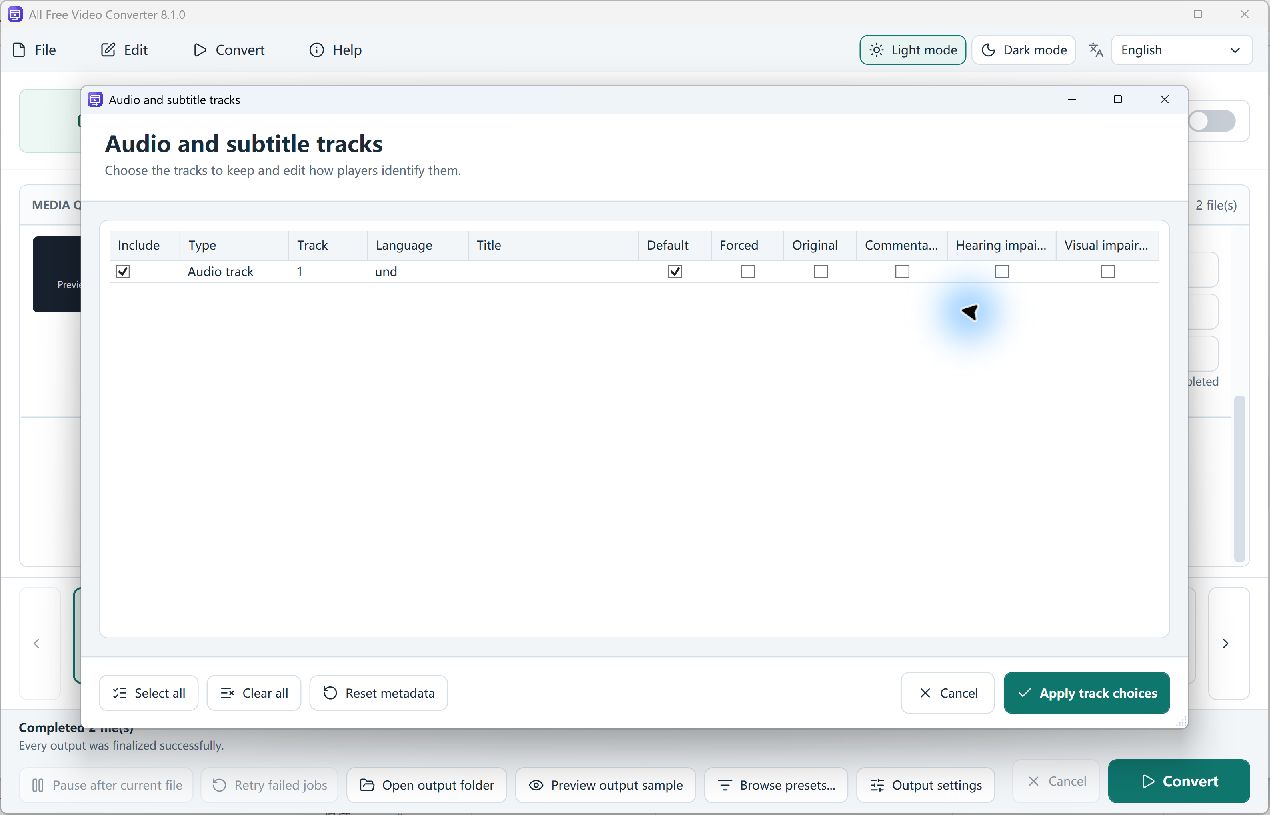
Import the folder you own or have permission to convert with DVD / Blu-ray. Select the title, add it to the queue and open Tracks. Compare the source track entries and their Include checkboxes. Keep the soundtrack you want and choose Apply track choices. For a diagnostic copy, include one audio track so the target player has only one to select.
Listen to a known scene before repeating
Choose MP4 · H.264 and convert. Play the same dialogue in the finished file. If it is still commentary, test the next source track from the original queue item. If the result is silent, verify the source is audible and the intended track was included before changing video settings.